

Estimated reading time: 10 minutes
Key Takeaways
- Web accessibility is a legal and financial risk that non-profits can no longer afford to ignore. Lawsuits and complaints are on the rise, and smaller organizations are increasingly targeted.
- The POUR framework (Perceivable, Operable, Understandable, Robust) gives you a clear standard to audit against. Start there before touching any tools.
- Automated tools catch roughly 30% of accessibility issues. Manual testing and real user feedback are what find the rest.
- Accessibility improvements directly support fundraising. Donor forms, event registration pages, and email signup flows are all at risk if they’re not accessible.
- An audit without an action plan is just a report. Fix high-impact issues first, assign owners, and treat accessibility as an ongoing operating standard.
Your non-profit’s website exists to move people to action: donate, volunteer, register, share. But if a portion of your audience can’t get through your navigation, fill out your form, or read your call to action, you’re not just losing conversions.
You’re shutting people out of your mission.
Web accessibility isn’t a technical checkbox buried in a developer’s backlog. It’s a direct line to the people you’re trying to serve, and a growing legal exposure if ignored.
This post brings together the practical steps of an effective accessibility audit with the real-world cost conversation that non-profit leaders need to have before the issue lands on their desk as a crisis.
1. The Real Cost of Ignoring Accessibility
Accessibility experts have been saying the same thing for years: the question is no longer whether accessibility matters; it’s whether you can afford to keep ignoring it.
Accessibility complaints and lawsuits in Canada and the United States have climbed steadily over the past several years. Non-profits are not exempt. In fact, smaller organizations with limited legal resources are increasingly targeted because the settlements are easier to extract.
A single complaint under the Accessibility for Ontarians with Disabilities Act (AODA) or the Americans with Disabilities Act (ADA) can cost far more in legal fees and remediation than a proper audit would have cost upfront.
Beyond legal risk, there’s a straightforward impact argument. Statistics Canada reports that over six million Canadians (roughly one in five) live with a disability. That population includes donors, volunteers, board members, and the people your organization exists to serve. New Book from David PisarekSteal 101 Proven AI Prompts for Non-Profits and AssociationsGrant proposals taking three days? Member renewals slipping through the cracks? The AI Advantage gives you a copy-paste prompt for every one of its 101 strategies. Works with any AI tool you already use.Get Instant Access for $37
An inaccessible website doesn’t just fail compliance standards. It tells a portion of your community that your digital front door is closed to them.
Accessibility isn’t a feature you add later. It’s a standard your website either meets or doesn’t, and the gap has consequences.
There’s also a secondary benefit that doesn’t get talked about enough: accessible websites rank better in search engines.
Google’s crawlers behave similarly to screen readers. Alt text, heading structure, descriptive link text, and a logical content hierarchy all benefit SEO and users with disabilities. An accessibility audit often surfaces SEO improvements as a byproduct.
2. What WCAG Actually Means for Your Organization
The Web Content Accessibility Guidelines (WCAG), published by the World Wide Web Consortium (W3C), are the global standard for digital accessibility. WCAG 2.1 Level AA is the benchmark most Canadian legislation references, including AODA. WCAG 2.2 was published in 2023 and added several new success criteria, particularly around mobile and touch interfaces. Everything in WCAG flows from four core principles, known by the acronym POUR.
Perceivable
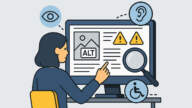
Users must be able to perceive all content, regardless of their sensory ability. Images need descriptive alt text. Videos need captions and transcripts. PDFs need to be tagged so screen readers can parse them. If any piece of content exists only in a format that a portion of users cannot access, it fails this principle.
Operable
Every function on your website must be operable by keyboard alone. Many users with motor disabilities don’t use a mouse. Dropdown menus that only work on hover, forms that require drag-and-drop interactions, and carousels with autoplay that can’t be paused are common failures here. If you can’t complete your donation form without a mouse, that’s an operable failure.
Understandable
Content and interfaces must be clear. Form fields need visible labels, not just placeholder text that disappears when you click in. Error messages need to tell users what went wrong and how to fix it, not just display a red border. Language needs to be set in the HTML so screen readers use the right pronunciation engine.
Robust
Your website needs to work reliably across a wide range of browsers and assistive technologies. Code needs to follow standards. Custom components (sliders, modals, accordions) need ARIA attributes so screen readers can interpret them correctly.
A site that looks fine in Chrome but breaks in a screen reader has a robustness failure. These four principles aren’t abstract. Every accessibility issue you’ll find in an audit maps back to one of them.
3. Before You Start: Scope and Team
An accessibility audit without a defined scope becomes a sprawling project that stalls before anything gets fixed.
Define your boundaries before you open a single tool. Start with the pages that carry the most weight for your organization: your homepage, donation page, event registration flow, contact form, newsletter signup, and any gated resources.
These are the pages where accessibility failures cost you the most, in lost conversions and in user trust. Then consider who needs to be involved. An audit isn’t a solo developer task.
It requires:
- A developer who can read and fix code
- A content person who can rewrite alt text, headings, and form labels
- Someone with decision-making authority to prioritize fixes and assign budget
- Ideally, at least one person with a disability who can provide lived-experience feedback
Leadership buy-in is the piece that most accessibility efforts are missing. When an audit sits in a developer’s queue without an executive sponsor, fixes get deprioritized whenever something more urgent comes in.
Accessibility needs to be treated as a compliance and brand risk issue, which means it needs to live at a level in your organization where those decisions get made.
4. The Tools That Actually Help
No single tool catches everything. A combination of automated scanning, manual testing, and real user feedback is the only way to build a complete picture.
Automated scanners are the right starting point. WAVE (by WebAIM), Axe (by Deque), and Google’s Lighthouse extension are all free and available in your browser. Run them on each priority page and export the reports. These tools typically catch structural issues like missing alt text, low colour contrast, missing form labels, and improper heading order, and at scale. They will not catch every issue.
Research consistently shows that automated tools identify somewhere between 20% and 40% of WCAG failures. The rest require human review.
Screen readers give you the closest approximation of what a blind or low-vision user experiences. JAWS is the industry standard for Windows and is paid software. NVDA is free and widely used. VoiceOver comes built into every Mac and iPhone. Try navigating your homepage, then your donation form, using only your keyboard and the screen reader. Listen to how your content is announced. Listen for what gets skipped, mislabelled, or read out in a confusing order.
Colour contrast analyzers verify that your text is readable against its background. WCAG requires a minimum contrast ratio of 4.5:1 for standard body text and 3:1 for large text. Pairing light grey text on a white background is a common design choice that frequently fails this threshold. The Colour Contrast Analyzer from TPGi is a free desktop tool that makes this check fast.
Keyboard-only navigation testing requires no tools. Unplug your mouse and try to complete a full user journey on your website using only Tab, Enter, Space, and arrow keys. Note where focus disappears, where the tab order skips around unexpectedly, and where modals trap your keyboard.
If you can’t donate to your own non-profit using only a keyboard, your donors with motor disabilities can’t either.
5. Six Steps to Run Your Audit
Step 1: Define your priority pages
List the ten to fifteen pages that matter most for your mission and revenue. Homepage, donation form, volunteer signup, contact page, event registration, and major program pages. These are your audit targets.
Step 2: Run automated scans
Run WAVE or Axe on each priority page. Export or screenshot the results. Don’t try to fix anything yet. Document first. Group findings by type (alt text, colour contrast, form labels, heading structure) so you can see patterns across pages rather than treating each issue in isolation.
Step 3: Test manually with a screen reader
Use VoiceOver on Mac or NVDA on Windows. Navigate each priority page from top to bottom. Tab through all interactive elements. Try to complete your most important user flows: donation, registration, and contact. Record what you encounter.
Step 4: Test keyboard-only
Disconnect the mouse. Navigate every priority page and complete every key user journey using the keyboard alone. Note every point where you get stuck, where focus goes invisible, or where a function is impossible without a pointer device.
Step 5: Gather user feedback
If you have any users, volunteers, or community members with disabilities who are willing to participate, invite them into a brief testing session. Give them a task (make a donation, register for an event) and observe without guiding them. Their experience will surface issues that no automated tool or internal tester will find.
Step 6: Document everything in a remediation report
Compile your findings into a document that lists each issue, the page it appears on, the WCAG criterion it violates, the severity (critical blocks a user from completing a task; major impairs the experience significantly; minor is a technical failure with lower user impact), and a recommended fix. This report becomes your action plan input.
6. The Issues You Will Almost Certainly Find
Non-profit websites share common patterns and common failures. These are the issues that appear most frequently in audits.
Missing alt text on images.
Images without alt text are invisible to screen reader users. Decorative images should have empty alt attributes (alt=””) so screen readers skip them. Images that convey information need descriptive text that communicates what the image shows and why it’s there. “Photo of volunteers” is weak. “Three volunteers sorting food donations at the Ottawa Food Bank, November 2024” is useful.
Low colour contrast.
Brand palettes often include light colours that fail contrast requirements when used for text. Run every text colour and background combination through a contrast checker. Brand guidelines are not exempt from WCAG.
Form fields without labels.
Placeholder text inside an input field is not a label. When a user clicks into the field, the placeholder disappears. Screen readers may not announce it at all. Every form field needs a visible, persistent label element that is programmatically associated with its input. This is one of the most common failures on donation and contact forms.
Keyboard traps and focus management.
Modals that open but don’t return keyboard focus to a logical place when closed. Dropdown menus that only respond to mouse hover. Carousels that auto-play with no pause control. These are operable failures that block keyboard and screen reader users from navigating your site.
Improper heading structure.
Headings communicate document structure to screen readers. Jumping from H1 to H4, or using headings purely for visual styling rather than hierarchy, breaks the logical outline of your page. Every page should have a single H1, followed by H2 subheadings, then H3 for sub-topics within each H2 section.
PDFs that aren’t tagged.
Non-profits rely heavily on PDFs: annual reports, program guides, and grant applications.
Untagged PDFs are largely inaccessible to screen readers. If you publish PDFs, they need accessible tagging, reading order, and alt text for any images or charts within the document.
7. From Audit to Action Plan
An audit report without an attached action plan changes nothing.
Once you have your findings documented, the next step is turning them into a prioritized remediation plan.
Group your issues into three tiers:
- Critical. These block users from completing key tasks: a donation form that can’t be submitted by keyboard, a modal that traps focus, and a page that crashes a screen reader. Fix these first, ideally within 30 days.
- Major. These significantly impair the experience without fully blocking it. This includes missing alt text on key images, low contrast on body text, and form fields with placeholder-only labels. Target these in the 30-to-90-day window.
- Minor. Technical failures with lower user impact: redundant title attributes, suboptimal focus order on non-critical pages, and decorative images with text alt attributes that could be empty instead. Schedule these into your regular development backlog.
Assign each issue an owner. Developers own code fixes. The content team owns alt text, headings, and plain language rewrites. Leadership owns decisions about design changes that affect brand standards. Set a review date and check progress on schedule.
Accessibility doesn’t have a finish line. New pages get added, plugins get updated, content changes, and each of those touchpoints is a new opportunity to introduce a failure. Build accessibility review into your content and development workflow as an ongoing standard, not a one-time project.
8. Building a Culture Where Accessibility Sticks
The organizations that sustain accessibility over time are the ones that stop treating it as a project and start treating it as a standard. That shift is cultural before it’s technical.
Train your content team to write descriptive alt text and use heading hierarchy correctly. Train your developers to test with a keyboard and a screen reader as part of their standard review process before pushing any change live. Include an accessibility checklist in your website update workflow so no new content goes live without a basic review.
When you bring in a new contractor or agency to work on your website, ask them directly about their accessibility process. Do they test with a screen reader? Do they follow WCAG 2.1 AA as a baseline? Do they have experience with AODA compliance? These are standard questions for any professional web team working with Canadian non-profits.
Celebrate the progress you make. Accessibility improvements are mission work. They extend your reach to people who were previously excluded from your digital presence. That’s worth recognizing internally as you hit milestones.
9. Where to Start This Week
You don’t need to complete a full audit before you do anything useful. Here are four things you can do right now, without a budget and without a developer:
- Go to your homepage and unplug your mouse. Try to navigate to your donation page and complete a donation using only your keyboard. Note every place you get stuck.
- Open your website in Chrome, install the WAVE browser extension for free, and run it on your donation page. Look at the red icons. Those are errors. Read what they are.
- Open one of your most important images and check whether it has alt text. Right-click the image, select “Inspect,” and look for the alt attribute in the HTML. Is it descriptive? Is it there at all?
- Look at your main body text and pick your background colour and your text colour. Paste both hex codes into the WebAIM Contrast Checker. Does it pass at the AA level?
Four checks, twenty minutes, zero budget. What you find will tell you whether you need an immediate fix or a full audit. Either way, you’ll have concrete examples for your leadership team to share, not abstract compliance language.
Ready to Make Your Non-Profit’s Website Accessible?
Wow Digital has helped over 320 non-profits build websites that work for every visitor. If you want a professional accessibility audit or need help remediating the issues you’ve already found, book a free consult and let’s talk about what your site needs. Book Your Free Consult
Frequently Asked Questions
What is a web accessibility audit?
A web accessibility audit is a systematic evaluation of your website to identify barriers that prevent users with disabilities from accessing your content and completing tasks. It includes automated scanning, manual testing with screen readers and keyboard-only navigation, and ideally, feedback from users with disabilities.
What is WCAG, and which level does my non-profit need to meet?
WCAG stands for Web Content Accessibility Guidelines, published by the W3C. WCAG 2.1 Level AA is the standard referenced by most Canadian and American accessibility legislation, including AODA. It’s the baseline your non-profit should target.
How often should a non-profit conduct an accessibility audit?
A full audit at least once a year is a reasonable baseline. If your site changes frequently, with new pages, updated plugins, and redesigned sections, build accessibility review into your regular workflow rather than treating it as an annual event.
Can my non-profit be sued for having an inaccessible website?
Yes. Legal complaints under AODA in Canada and the ADA in the United States have been filed against non-profits. Smaller organizations are not exempt. The cost of remediation is almost always lower than the cost of legal defence and settlement.
What’s the difference between automated accessibility testing and manual testing?
Automated tools scan your code and flag known patterns that violate WCAG criteria. They’re fast and useful for catching structural issues, but they typically identify only 20% to 40% of real accessibility failures. Manual testing (using a screen reader, testing keyboard navigation, reviewing content for plain language) is what finds the rest.
Does improving accessibility help SEO?
Yes. Many accessibility improvements directly benefit search engine rankings. Descriptive alt text, logical heading structure, clear link labels, and properly structured HTML all help search engines crawl and index your content more effectively, the same qualities that benefit screen reader users.






0 Comments