

WordPress is the premier choice for non-profits looking to build their websites, powering a staggering 43% of all websites globally. This figure is on the rise, demonstrating the platform’s widespread appeal. WordPress is the very engine behind this blog! If you’re reading this guide, it’s likely your site is either part of the WordPress community or will be joining soon.
So, what draws non-profits to WordPress? Primarily, it’s the platform’s free, open-source nature and remarkable ease of use. Even those with minimal coding experience find maintaining a WordPress site straightforward.
Look, here’s the point. You need to have backups of your site. Whether you manage a non-profit, a personal website, or a blog, achieving a seamless WordPress website migration is simple with the help of a reliable plugin like Backup Migration. You can transition your site effortlessly without any technical headaches.
At some point in time, you’ll need the backup, and you’ll be glad that you have it! You can thank us later.


Preparation
Migrating your WordPress site with the Backup Migration plugin is a streamlined process that involves two key steps: creating a backup on your old site and restoring that backup on your new site. However, there are a few important actions to take before you begin the migration:
1. Install the Backup Migration Plugin on Your Old Site: Start by adding the free Backup Migration plugin. You can find and install it just like any other plugin in the “Plugins” section of your site’s Dashboard.

2. Prepare a New WordPress Instance: Set up a fresh WordPress instance where your new site will reside. Most major hosting companies offer a one-click installation solution, making it quite straightforward. However, you can manually configure it yourself if you don’t have access to automated setups. Don’t forget to install the Backup Migration plugin on this new instance.
By following these preliminary steps, you’ll ensure a smooth and efficient transition to your new WordPress website.
Backup creation
Creating a website backup is a straightforward process once you have the Backup Migration plugin installed:
1. Start by Accessing the Plugin Menu: The Backup Migration plugin will direct you to its menu page within the WordPress Dashboard. Navigate to the section labelled “What will be backed up?” You should select all files, folders, and the complete database, then click the “Save” button to ensure a comprehensive backup is prepared.

2. Review and Exclude Files: On the same menu page, you’ll see the sizes of your folders and databases. This overview can help you identify any items you want to exclude from the backup. If you exclude certain files or folders, toggle the exclusion option to “Yes” and specify which items to leave out. The plugin typically suggests some common exclusions and guides you on how to set up your own. Make sure to save any changes you make.

3. Initiate the Backup: Once you’re ready, click the “Create backup now!” button. The plugin will begin the backup process, which is usually completed within a minute or two for average-sized websites. The time can vary depending on your database size and server configuration. For larger sites over 2GB, consider using the premium version of the Backup Migration plugin for improved performance.
4. Download Your Backup: After the backup, you can download the file. Keeping a local copy of your backup is highly recommended for extra security. This ensures that you have everything you need to restore your site should the need arise. Using external storage to store the backup is an alternative to this.
Migration operation
The migration process is a critical second step carried out on the destination site, as outlined in the Preparation section of this article. Here’s how to proceed on the destination site:
Navigate to the Plugin Area “Manage & Restore Backup(s)”: You’ll find three options here to restore a backup from the source site. Choose the option based on whether you are moving to a new domain or staying on the same one:
- Option A: Super-Quick Migration: This is ideal for moving to a new domain. Paste the link to the backup file from the source website into the provided field and click “Restore Now!”. Obtain these backup links by clicking the small link icon in the same plugin section.
- Option B: Upload Backup Files: If the domain remains the same, use this method to upload backup files manually within the same section. You can either select the file or use a drag-and-drop method. Initiate the restoration by clicking the “Restore” button beside the uploaded file.
- Option C: External Storage Location: This option is for those who prefer external storage, such as Google Drive (with more options coming soon). First, connect your Google account in the “Where Shall the Backup(s) Be Stored?” section and synchronize your backup file. Then, commence the restoration by clicking the “Restore” button.

If you selected Option A and are reviewing the new site, you might consider archiving the old site. However, if the old site is to be kept online, setting up redirects from the old domain to the new one is advisable. Inisev, creators of the Backup Migration plugin, also offer a user-friendly Redirection plugin. This tool features an intuitive interface that makes setting up redirects quick and easy, ensuring a smooth transition to your new site.
Post-migration
After completing your site’s migration, it’s wise to keep the Backup Migration plugin installed on your new site for several compelling reasons.
Regular and Scheduled Backups: The foremost advantage is setting up regular website backups. These can be scheduled automatically, eliminating any worry about potential site issues or downtimes that could render your website broken or inaccessible to users. While many large hosting companies offer backup services, using the plugin often provides a quicker, more user-friendly restoration experience, which is particularly beneficial for those who aren’t tech experts.
Creating a Staging Site: Another significant benefit of the Backup Migration plugin is its ability to create a staging site easily. This feature is invaluable for implementing major updates or changes to your website. You can test everything in a secure staging environment, ensuring no major changes disrupt your live site before they are perfected.
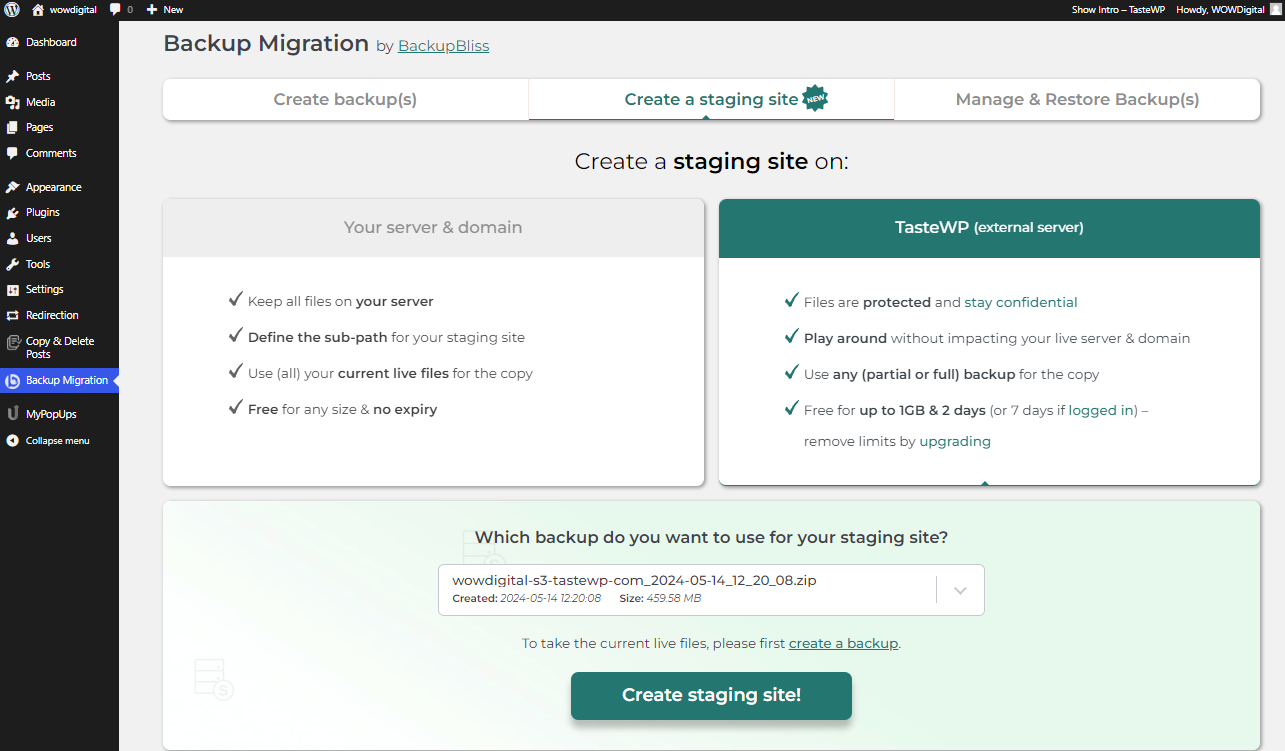
Keeping the Backup Migration plugin active enhances your website’s resilience and supports ongoing development and maintenance with minimal risk.
Final Thoughts
Gone are the days when migrating your WordPress site meant shelling out for expert help or depending on hosting agencies to do the heavy lifting. The landscape has shifted dramatically thanks to user-friendly migration tools like the Backup Migration plugin, which puts the control of seamlessly migrating your site in your hands.
Bid farewell to the time-consuming hassles and costly expenses. Modern site owners can now confidently handle their migrations, saving time and valuable resources. This remarkable plugin greatly simplifies migration, making it an essential tool for webmasters aiming for a smoother, stress-free experience.









0 Comments